Server Setup
Using Let's Encrypt
Free TLS certificates that renew themselves — what problem they solve, and how to wire auto-renewal into a Lightsail site without fighting your own deploy scripts.
TL;DRLet’s Encrypt is a free, automated, nonprofit certificate authority (CA) run by the Internet Security Research Group (ISRG). It issues domain-validated TLS certificates — the same kind you’d otherwise buy from Sectigo, DigiCert, or your registrar — at no cost, using a protocol called ACME (Automatic Certificate Management Environment) instead of a web form and a credit card. The certbot client, maintained by the EFF, is the standard way to speak ACME from a Linux server.
The Lightsail setup article mentioned
Let’s Encrypt as one of two ways to get a certificate, and built its
template around the other one — a commercial CA’s .crt
/ .key files dropped into website/csr/ and
installed with copythem.sh. This article covers the
Let’s Encrypt path in full: what it actually solves, what breaks
when it isn’t automated, and step-by-step directions for adding it
to a site already built from that template — without certbot
fighting your deploy scripts for control of the Apache config.
What Problem It Solves
Before Let’s Encrypt launched in 2016, getting a browser-trusted certificate meant paying a CA anywhere from $10 to $100+ a year, proving domain ownership through a manual email or DNS step, and remembering to repeat the whole process annually. That friction had real consequences:
- Cost kept small sites on plain HTTP. A hobby project or internal tool often wasn’t worth an annual cert fee, so it shipped without TLS — and modern browsers now flag plain HTTP sites as “Not Secure” right in the address bar.
- Manual renewal is a once-a-year task nobody remembers. A cert that must be renewed by hand, on a human’s schedule, eventually gets forgotten. An expired certificate doesn’t degrade gracefully — browsers hard-block the page with a full-screen warning until it’s fixed.
- HTTP/2 and modern browser features expect HTTPS. Geolocation, service workers, and HTTP/2’s connection multiplexing are unavailable or crippled over plain HTTP in most browsers.
Let’s Encrypt removes the cost entirely and, more importantly, makes the whole process scriptable. Because issuance is an API call instead of a web form, renewal can run unattended on a timer — which turns an easy-to-forget yearly chore into a problem that, once set up correctly, you never think about again.
How It Works: the ACME Protocol
Let’s Encrypt doesn’t take your word for it that you own
yoursite.com. It proves it, automatically, using a
challenge-response exchange called domain validation.
The most common form for a single server is the HTTP-01
challenge:
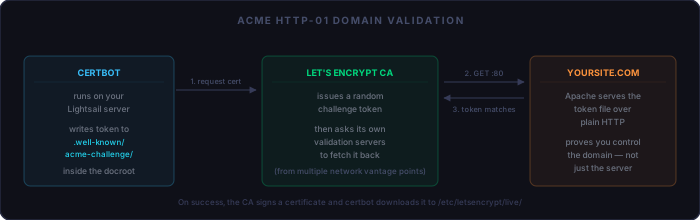
- Certbot asks Let’s Encrypt for a certificate covering one or more domain names.
- Let’s Encrypt issues a random token and asks its own
validation servers — from multiple network locations, to
resist localized attacks — to fetch that token back from
your domain at
http://yoursite.com/.well-known/acme-challenge/<token>. - Certbot places the matching file at that exact path (either by writing directly into your docroot — the webroot plugin — or by briefly running its own listener on port 80).
- If the fetched content matches, Let’s Encrypt has proof you control the domain (not just a server, but the specific one DNS points at) and signs a certificate.
Wildcard certificates (*.yoursite.com) use a different
challenge — DNS-01, which requires proving
control of DNS itself by publishing a TXT record via your DNS
provider’s API. That needs a DNS plugin specific to your
registrar and is outside the scope of this article; the HTTP-01 flow
above covers a single domain plus its www alias, which is
what nearly every small site needs.
Why Certificates Only Last 90 Days
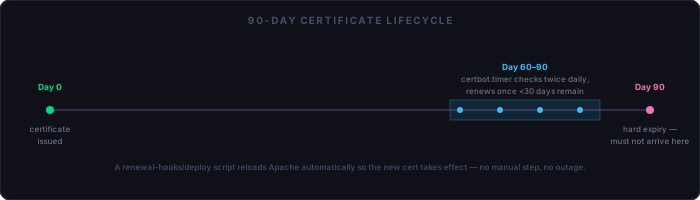
Commercial certs are often valid for one or two years. Let’s Encrypt certificates are valid for exactly 90 days, and that’s a deliberate design choice, not a limitation:
- It limits the damage from a leaked key. A certificate whose private key leaks is only useful to an attacker for a bounded window, not years.
- It forces automation. A 90-day cycle is too frequent to renew by hand reliably, which pushes every user toward scripted renewal — and a scripted process doesn’t get forgotten the way an annual one does.
Problems a Site Can Have Without This Set Up Correctly
Most Let’s Encrypt failures aren’t protocol problems — they’re operational ones that show up months after the initial setup, when nobody is watching:
- Silent expiry. The single most common outage: renewal was never automated, or the automation quietly broke, and the cert expires with no warning until a visitor sees a browser error. Section below covers verifying the timer is actually active.
- Port 80 closed or firewalled. HTTP-01 validation
happens over plain HTTP. If port 80 is blocked at the Lightsail
firewall or inside
ufw, both initial issuance and every renewal fail the same way. - DNS not fully propagated. Requesting a certificate before the domain’s A record has propagated everywhere fails validation from some of Let’s Encrypt’s vantage points even if it resolves correctly from your own machine.
- Renewed cert never reaches Apache. Certbot writes new certificate files to disk, but Apache holds the old ones open in memory until it’s reloaded. Without a deploy hook, the cert file on disk is current but the live connection still serves the old (soon-to-expire) one.
- Rate limits hit while testing. Let’s
Encrypt allows 5 duplicate certificates for the same domain set
per week. Repeatedly re-running a real request while debugging a
config burns through that quickly — use
--dry-run(below) or the--stagingflag while testing. - Missing the
wwwalias. A cert issued for onlyyoursite.comshows a name-mismatch warning to anyone who visitswww.yoursite.com. Request both names together.
Fitting This Into the Lightsail Template
Most Let’s Encrypt tutorials tell you to run
certbot --apache and let it handle everything. On a
site built from the Lightsail template, don’t do that —
it will work at first and then break your HTTPS on some future
content deploy, in a way that gives no error and takes real digging
to trace back to its cause.
Here’s the mechanism. The template treats your local
working directory as the source of truth for Apache config:
uploadall.bat SCPs mysitename-ssl.conf to
the server and overwrites whatever is already
there, every time. Certbot’s Apache plugin doesn’t know
that convention exists — it edits the live vhost file
on the server directly, adding its own
SSLCertificateFile lines to the copy that’s
currently running. That works fine right up until the next time you
push an unrelated content change with uploadall.bat
(or, on this template, even uploadcontent-web.bat
followed by a later uploadall.bat). At that point your
local template’s older, pre-certbot version of
mysitename-ssl.conf silently replaces the one certbot
patched, the site’s HTTPS reverts to whatever it pointed at
before — typically a certificate path that no longer matches
reality — and Apache can fail to start, or serve a broken or
expired cert, for a reason that has nothing to do with whatever you
actually just deployed.
The fix is to use certbot’s webroot plugin
instead of the Apache plugin. It only ever writes challenge files
inside your existing docroot to prove domain ownership, and it
never touches Apache config at all. You keep full control of
mysitename-ssl.conf in your local template — you
make one manual edit, pointing its cert paths at
/etc/letsencrypt/live/ instead of the
/etc/ssl/ paths that copythem.sh populates
for a commercial-CA cert — and because that edit lives in your
local template like any other change, it survives every future
deploy instead of being overwritten by it. Everything else about
the deploy workflow stays exactly as documented in the Lightsail
article.
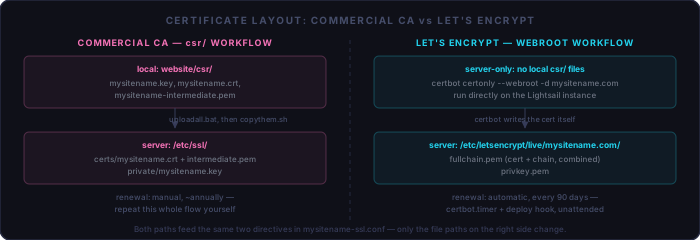
SSLCertificateFile and SSLCertificateKeyFile — in mysitename-ssl.conf. Everything upstream of those two lines is different, and everything downstream is identical.Do this aftersetup.shhas enabled the HTTP vhost and your domain resolves to the server — HTTP-01 validation needs a live, reachablehttp://yoursite.comto write the challenge file into.
If your site is already running on HTTPS — which it is, if
you’re following this article to switch from a commercial CA
— mysitename-ssl.conf also carries a rule that
redirects every plain-HTTP request to HTTPS, including whatever
path the ACME challenge would use:
<VirtualHost *:80>
  RewriteEngine On
  RewriteCond %{HTTPS} off
  RewriteRule (.*) https://%{HTTP_HOST}%{REQUEST_URI}
</VirtualHost>
That’s not a problem. Let’s Encrypt’s validation
servers follow HTTP→HTTPS redirects during the HTTP-01
challenge as a matter of course — it’s standard behavior,
not an edge case, since redirecting to HTTPS is the default state of
most real sites. The redirect just adds one hop: the validation
request lands on port 443 instead of port 80, but the
:443 vhost serves the exact same
DocumentRoot that :80 does, so the
challenge file certbot wrote into your docroot is still sitting
right where it’s expected. The only requirement is that
whatever’s currently installed on port 443 completes a normal
TLS handshake — true for both a renewal and a first-time swap
from a commercial cert, since in either case a valid certificate is
already live when the request comes in.
The case that would break is a brand-new site that has
never had any certificate on port 443 at all. If
update-ssl.sh ran before any certificate existed, the
redirect target would have nothing valid to complete a TLS
handshake with, and validation could never succeed — a
chicken-and-egg deadlock. That’s exactly what the blockquote
above is protecting against: on a fresh site, stay on the
plain HTTP-only vhost (no redirect at all) until the first
certificate is issued, whichever CA it comes from.
Step by Step: Adding Let’s Encrypt to an Existing Site
Step 1 — Install Certbot
SSH into your server and install certbot without the Apache plugin:
# Ubuntu 24.04 ships certbot in the default repos
sudo apt update
sudo apt install certbot -y
Step 2 — Request the Certificate via Webroot
Point -w at your site’s docroot (the same path
mysitename.conf already serves) and list every name the
cert should cover:
sudo certbot certonly --webroot \
  -w /var/www/mysitename/mysitename.com \
  -d mysitename.com -d www.mysitename.com
Certbot asks for an email address (used only for expiry warnings and urgent notices from Let’s Encrypt, never spam) and agreement to the subscriber agreement, then writes four files:
/etc/letsencrypt/live/mysitename.com/
├── fullchain.pem    ← certificate + intermediate chain (use this, not cert.pem)
├── privkey.pem      ← private key
├── cert.pem         ← leaf certificate only
└── chain.pem        ← intermediate chain only
Testing without burning rate limit: add
--dry-run to any certbot command to simulate the full
issuance flow against Let’s Encrypt’s staging environment.
It exercises the same validation path without counting against the
real rate limits or producing a browser-trusted cert — run it
first if you’re unsure the webroot path or DNS is correct.
Step 3 — Point Your SSL vhost at the New Cert
Edit website/apache2/mysitename-ssl.conf in your
local working directory — not on the server
— so the change survives the next deploy:
# Before (commercial CA, installed by copythem.sh)
SSLCertificateFile      /etc/ssl/certs/mysitename.crt
SSLCertificateKeyFile   /etc/ssl/private/mysitename.key
SSLCertificateChainFile /etc/ssl/certs/mysitename-intermediate.pem

# After (Let's Encrypt, managed by certbot)
SSLCertificateFile    /etc/letsencrypt/live/mysitename.com/fullchain.pem
SSLCertificateKeyFile /etc/letsencrypt/live/mysitename.com/privkey.pem
fullchain.pem already includes the intermediate chain,
so the separate SSLCertificateChainFile directive isn’t
needed — remove it if present.
Step 4 — Deploy and Reload
# From your local working directory
uploadall.bat
Then SSH in and re-enable the SSL vhost so Apache picks up the config change:
cd /var/www/mysitename/website/apache2
sudo ./update-ssl.sh
Test at https://mysitename.com. The browser padlock
should show a certificate issued by R-series, Let’s
Encrypt rather than your previous CA.
Step 5 — Verify Auto-Renewal Is Actually Active
Installing certbot via apt also installs a systemd
timer that runs the renewal check twice a day. Confirm it’s
enabled — don’t just assume it is:
systemctl status certbot.timer
systemctl list-timers | grep certbot
If it’s not listed or not active, enable it explicitly:
sudo systemctl enable --now certbot.timerStep 6 — Add a Deploy Hook to Reload Apache
A renewed certificate on disk does nothing until Apache reloads.
Certbot runs every executable script it finds in
/etc/letsencrypt/renewal-hooks/deploy/ after any
successful renewal — regardless of whether that renewal was
triggered by the timer, cron, or a manual run — so this is the
most reliable place to put the reload, rather than a one-off flag
you might forget to repeat:
sudo tee /etc/letsencrypt/renewal-hooks/deploy/reload-apache.sh > /dev/null <<'EOF'
#!/bin/bash
systemctl reload apache2
EOF
sudo chmod +x /etc/letsencrypt/renewal-hooks/deploy/reload-apache.sh
Step 7 — Do a Full Dry Run of Renewal
Confirm the entire pipeline — validation, hook, reload — works before trusting it to run unattended for the next 90 days:
sudo certbot renew --dry-run
A clean dry run means the timer will handle real renewals the same
way with no further action from you. Check
/var/log/letsencrypt/letsencrypt.log if anything
reports failure.
Multiple Sites on One Server
Following the Lightsail article’s pattern of one
/var/www/<sitename>/ tree per site, request a
separate certificate per domain — certbot keeps them
independent under /etc/letsencrypt/live/<domain>/,
and the single certbot.timer renews all of them on its
normal schedule:
sudo certbot certonly --webroot -w /var/www/mysitename/mysitename.com \
  -d mysitename.com -d www.mysitename.com

sudo certbot certonly --webroot -w /var/www/othersitename/othersitename.com \
  -d othersitename.com -d www.othersitename.com
Repeat Steps 3–4 for each site’s own -ssl.conf.
Step 6’s deploy hook only needs to exist once — it reloads
Apache for every site’s renewal, since a single
systemctl reload apache2 picks up every enabled vhost.
Checklist
Prerequisites:
  [ ] Domain resolves to the server; HTTP vhost already live (setup.sh run)
  [ ] Port 80 open at the Lightsail firewall and in ufw

Issue the certificate:
  [ ] certbot installed (apt install certbot — no apache plugin)
  [ ] certonly --webroot run with both bare domain and www names
  [ ] --dry-run tested first if anything about the setup was uncertain
  [ ] fullchain.pem and privkey.pem confirmed present under /etc/letsencrypt/live/

Wire it into the template:
  [ ] Local mysitename-ssl.conf updated to point at /etc/letsencrypt/live/ paths
  [ ] SSLCertificateChainFile directive removed (fullchain.pem already includes it)
  [ ] uploadall.bat run, then update-ssl.sh re-run server-side
  [ ] https://yoursite.com confirmed showing a Let’s Encrypt-issued cert

Auto-renewal:
  [ ] certbot.timer confirmed active (systemctl status certbot.timer)
  [ ] renewal-hooks/deploy/reload-apache.sh created and executable
  [ ] certbot renew --dry-run passes end to end
  [ ] Calendar reminder set to spot-check the cert expiry date once, ~60 days out